Use Your Android Phone With a Projector: Wired vs Wireless
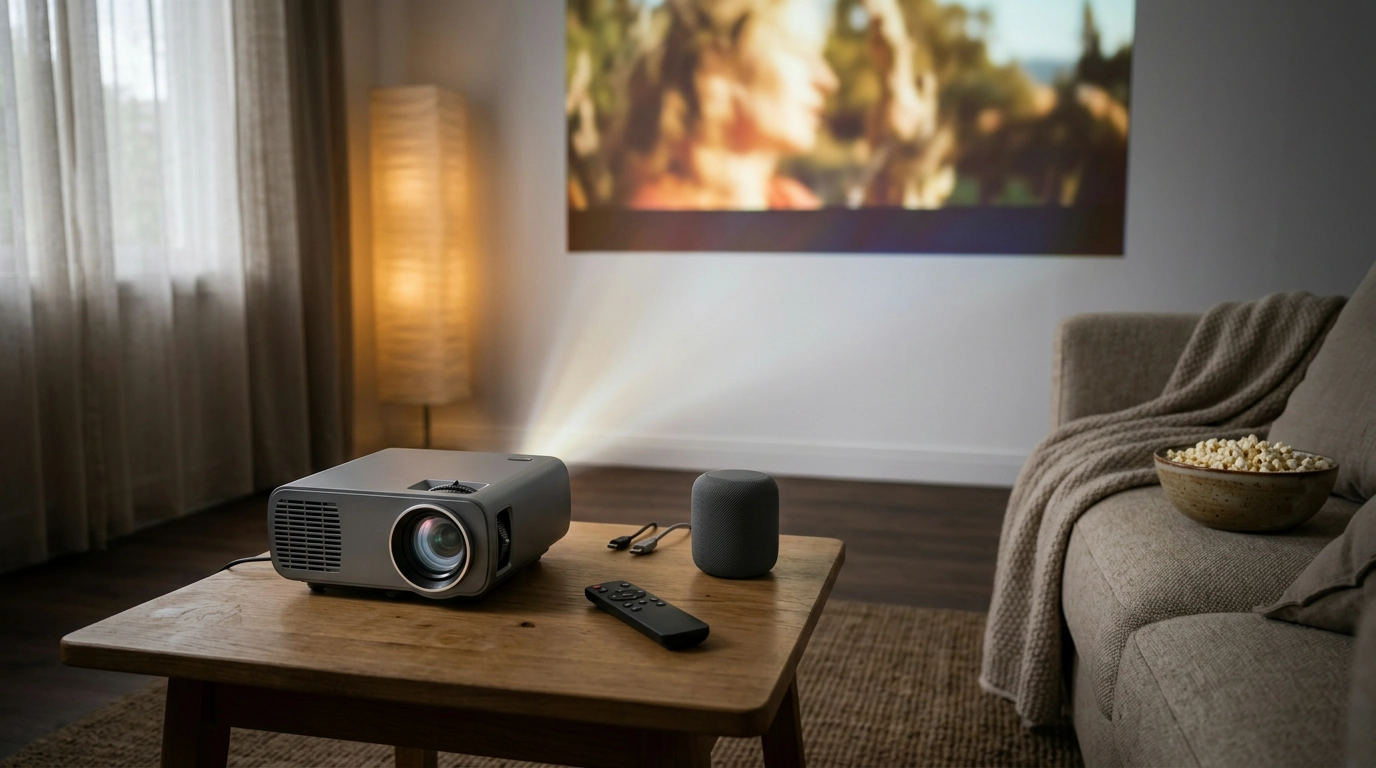
Can I use my Android phone as a projector?
Quick answer
You can’t turn an Android phone into a true projector that throws an image onto a wall by itself. What you can do is use your Android phone as the source and display its screen on a separate projector using a cable or wireless casting.
Option 1: Connect with a cable (most reliable)
If your phone supports video output over USB-C, a USB-C to HDMI adapter is usually the cleanest setup. Plug the HDMI end into the projector, connect power to the adapter if required, then select the correct HDMI input on the projector and your phone screen will mirror.
For older phones, MHL (Micro-USB to HDMI) may work, but support varies by model. If you’re unsure, try a known-good USB-C to HDMI setup first, since it’s the most common route on newer Android devices.
Option 2: Cast wirelessly (most convenient)
If your projector has built-in casting (like Miracast) or you’re using a streaming stick, you can mirror your Android screen without cables. Turn on the projector, open your phone’s Cast/Screen Cast/Smart View feature, and connect to the projector or streaming device.
Wireless is great for quick sharing, but it can introduce a bit of delay. For gaming or fast motion, a wired HDMI connection typically looks and feels smoother.
What to watch for (so your setup works the first time)
Some streaming apps restrict screen mirroring due to DRM, so a movie might play as a blank screen while menus still show—using a projector with built-in Android TV-style playback can help. Also plan for audio: many people run sound from the projector’s speaker, a Bluetooth speaker (if supported), or a wired speaker output.
Projector-friendly tip from our team
If you want an easy phone-to-big-screen setup with modern connectivity (HDMI, 5G WiFi casting, Bluetooth audio), use a mini projector designed for it. We put the key connection methods and setup ideas together here: https://ethanial.com/guide-mini-hd-projector-android-tv-5g-wifi-bluetooth-200-inch/.
FAQ
Do I need Wi‑Fi to mirror my Android phone to a projector?
Not always. A wired HDMI connection doesn’t require Wi‑Fi, and some wireless methods (like certain Miracast/Wi‑Fi Direct setups) can connect without your home network, though both devices still need wireless capability.













Leave a comment